
MoveJack records your trips by itself. You set the app up properly once and after that you simply drive. This manual walks through the app screen by screen: what it does, how you use it, and where it stops. That last part is there on purpose — a manual that only describes the good side leaves you stranded at the moment you need it.
If you are looking for an overview of what the app can do first, that is on everything the app does. If you want to know where your data technically stays, privacy at MoveJack explains it.
1. At a glance
The app does three things at once. It notices from the movement of your phone that you are driving and records the trip with its route, distance and duration. It works out from the time between two trips how long you were somewhere, so your hours fill in without you starting anything. And on request it turns all that into a report in Excel or PDF.
Your trips, visits, vehicles and addresses sit in a database on your phone. You do not create an account and there is no login. That has a flip side too, and it is in chapter 12: we cannot restore anything for you.
2. Getting started
On first launch a wizard of five steps runs: welcome, your first vehicle, your own information, your rates, done. You can always run it again later through Menu › Service › Setup wizard.
In step four you set what you charge per mile or kilometre and what your hourly rate is. There you also choose whether you want to see a trip score after every trip. Everything you enter here can be changed later in the settings. Whether the app counts in miles or kilometres, and in which currency, is set under your own information: Units and Currency.
The permissions
Recording automatically only works if the app is allowed a few things. The Permissions screen shows for each item whether it is set correctly, and each item has an Adjust button that takes you to the right place in your phone settings.
- Location on ‘allow all the time’. Needed to record trips while the app is in the background. On ‘while using’ the app misses most of your trip. Turn on precise location as well; with an approximate location trip detection does not work.
- Physical activity. This is how the app notices you setting off and stopping. Without this permission a trip will not start and stop by itself.
- Notifications. So you see when a trip has started or been added. They also carry the quick buttons that set a trip to private or business in one tap.
- Nearby devices. Only needed if you work with a Bluetooth tag per vehicle (chapter 6).
- Battery optimization off. Stops Android from throttling the recording in the background.
- Keep app permissions. Turn off manage app if unused. Leave it on and Android quietly withdraws your location permission after a few months.
Refuse location once and Android will not ask again. After that you can only get there through Open settings.
Trial and subscription
The first three days are free. After that the subscription renews automatically, monthly, every six months or yearly. You cancel in the App Store or Google Play, not in the app; Menu › Manage subscription takes you straight there. If you bought before and are reinstalling, use Restore purchases.
3. The home screen
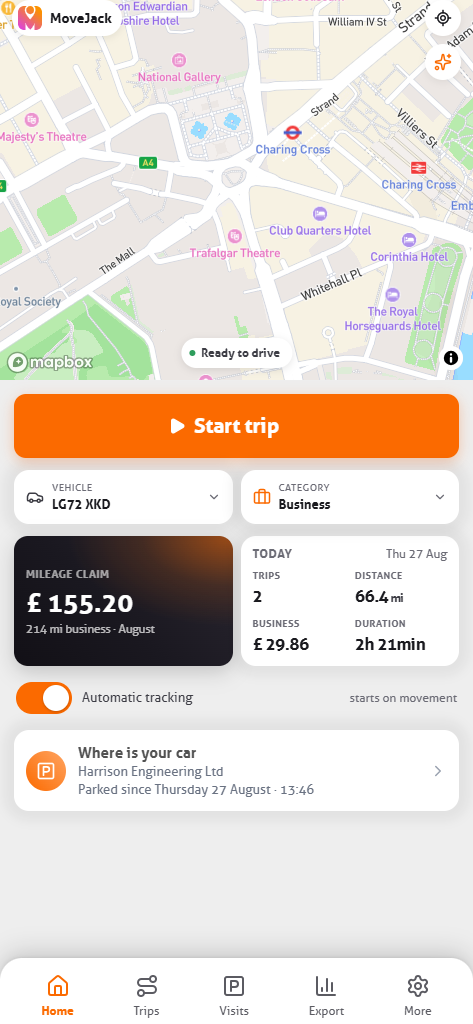
At the top you see the map and the vehicle that is currently active. Below it is where today stands: number of trips, distance and duration. The app says in plain words what it is doing: Ready to drive when it is waiting, Recording trip when you are under way.
The large tile is a choice. Tap it and you switch between three views:
- Mileage claim — your business distance this month, at your own rate.
- Hours claim — the hours you spent at clients this month, at your hourly rate.
- Private mileage — your private distance this year against the limit that applies to you. Useful if you have a company car and have to stay under a limit.
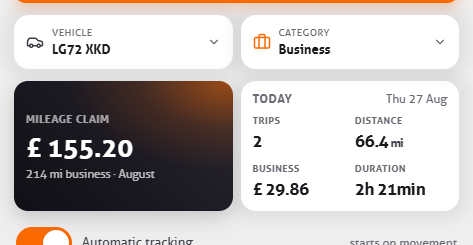
During a trip you can set the middle panel to live figures: your current speed, the distance of this trip, what percentage of the trip you were speeding, the CO₂ of this trip, and how often you accelerated hard, braked hard or took a corner sharply. Those last four only appear if Driving behavior events is switched on.
4. Trips

A trip begins when the app notices you are driving and ends when you have been standing still for a few minutes. You do not have to start anything. If you would rather do it yourself, you can switch off Automatic tracking and work with Start trip and Stop trip.
The overview groups your trips by day, with the start and end address, distance, duration and amount for each. At the top is the total for the chosen period and how much of it is claimable. You can filter by period, by vehicle and by category.
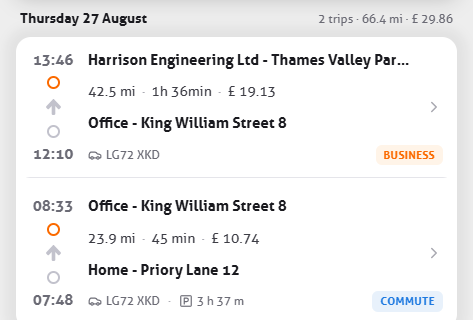
Business, private or commute
Every trip falls into one of three categories. There are three ways to arrange that, and they apply in this order:
- Office hours. Set which days and times are working time. Trips inside those times become business, trips outside them private. This takes precedence over the default setting below.
- Trips private by default. A switch in the settings. With it off, a new trip is business.
- Per trip. The ‘trip added’ notification carries a button Change to private or Change to business. You can also switch it in the trip itself at any time.
Under Trips & office hours there is also the option Outside office hours the app records no trips. Turn that on and the app records nothing at all outside your working hours — not even private trips.
Splitting, merging and correcting
Sometimes reality does not match what the app saw. Two stops recorded as one trip, or one trip cut in two because you stopped for fuel. There are two actions for that:
- Merge with previous turns two trips into one. You cannot undo that.
- Split trip lets you pick a point on the route and cuts the trip in two there.
A trip the app did not see at all you add yourself with Add trip. That only works in the past, and you have to choose a start and an end address. From an existing trip you can also use Add trip from here or to here, and then one address is already set.
Once you have submitted trips, you can mark them as claimed. They then carry a label, so at the next claim you can see what has already gone out.
5. One trip in detail
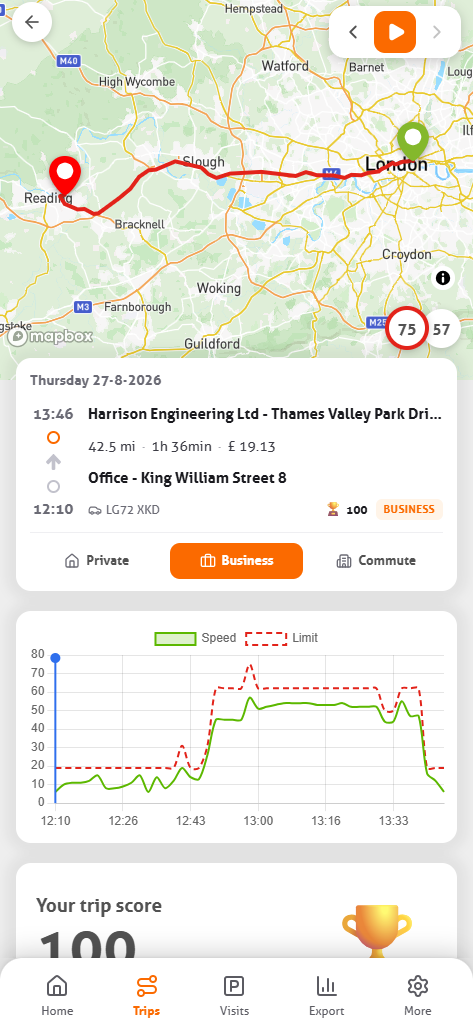
Tap a trip and you see the route on the map, with the details below it: date, start time, start and end address, distance, duration, average and top speed, and the odometer reading. The play button above the map replays the route, point by point. Previous trip and Next trip walk you through your day without going back to the overview.
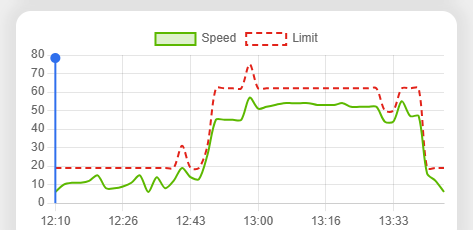
Below the map is a chart of your speed against the limit in force across the whole trip. It shows at a glance where you were speeding, and by how much.
What you can add here yourself:
- Comment. Why you made that trip, or who you visited. A device cannot know that, and for the tax office it is often exactly the missing piece.
- Detour. If you drove around, enter the detour distance with your own explanation. That keeps the difference between the route driven and the obvious route accounted for.
- Category and vehicle. Both can be changed here.
If you have the trip score switched on, you also see a rating with it, along with how much you were speeding. The speed limit used for that comes from OpenStreetMap; on roads where it is not known, the score stays empty. If you would rather not see it, switch off Show trip score.
6. Vehicles and tags
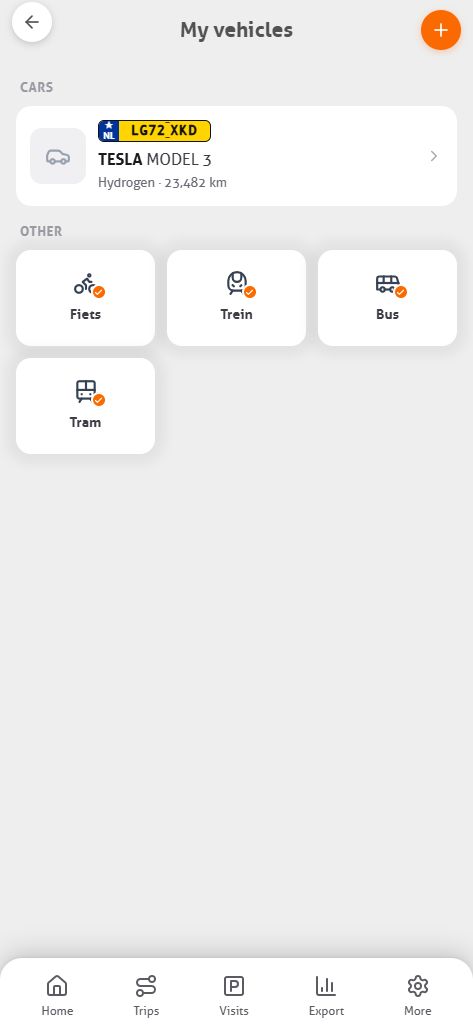
Under My vehicles are your cars, and alongside them bike, train, tram and bus are ready to use. For a car you enter the licence plate, brand, model, chassis number, fuel type and CO₂ emissions. You type those in yourself; there is no automatic plate lookup here.
You can set a separate mileage rate per vehicle. That helps if you have a car and a van that you charge on differently. Each vehicle also has a Register automatically switch.
Bike, train, tram or bus
Not every journey is a car trip, and the app tries to work that out for itself. It does not look at a single signal but at the pattern of the whole trip:
- Bike — when motion detection mostly reports cycling and your top speed fits that. Both have to hold: Android’s detection regularly reports cycling for a car by mistake, so the GPS speed gets a say.
- Train — when most of the measured points sit on or right beside the track. A train runs almost the whole way on rails; a car driving along the line does not.
- Tram — when the points sit right beside a tram or light-rail alignment.
- Bus — when your stops consistently fall at bus stops. A car stops at lights and junctions, not repeatedly at a stop.
The thresholds are set on the strict side, because a car trip booked as a bus is worse than a bus trip left as a car. If it is still wrong, change the vehicle in the trip itself.
The right vehicle, automatically
If you drive more than one vehicle, the app has to know which one you are in. You can do that by hand by picking the active vehicle, or you pair a Bluetooth tag with a vehicle. With that tag in the car, the app recognises it and the trip goes to the right vehicle.
The home screen shows the state: Tag nearby, No tag in range, or Bluetooth is off — trips won’t link to the right vehicle. Tags need Bluetooth on and the Nearby devices permission.
In the settings, under Tags, there are two choices for what should happen to a car trip with no tag nearby: set it to Unknown, or do not save it at all. Bike, train and bus trips fall outside that. Only switch the second option on if you are certain every vehicle has a tag — otherwise trips disappear without you noticing.
7. Visits and hours
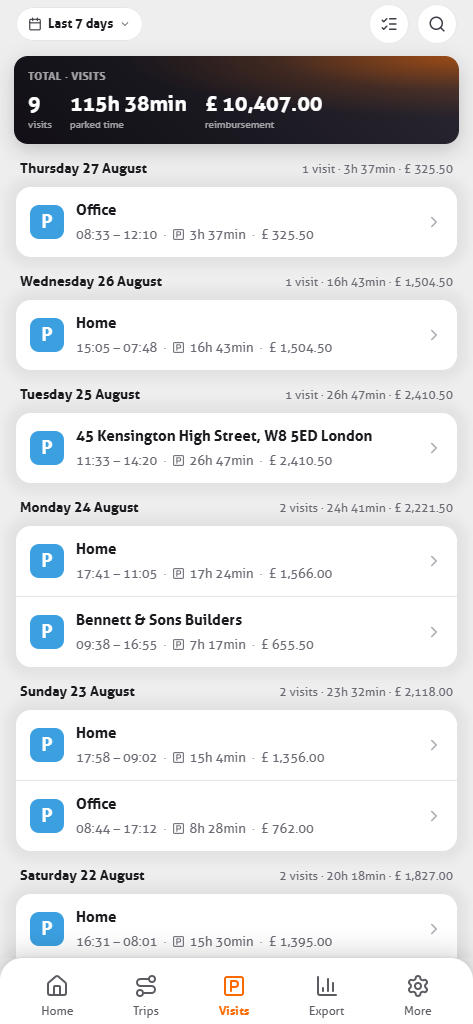
A visit is not something you start. It is the time between two trips: where your trip ends the visit begins, and where your next trip begins it ends. Arrival, departure and duration follow from that.
If that address is in your app as a client or a regular address, the line gets the right name straight away instead of a street name. You can filter your visits by client, and from a visit jump through to the trip that went there.
For your claim you work with three rates side by side: your mileage rate, an hourly rate for time on the road, and your ordinary hourly rate for time on site. Under Client declaration you see those three together per client.
The honest flip side: the app works out your hours from where you stood and for how long. It does not know what you did there. A long lunch at a client counts as time on site until you adjust the trip. A visit is not separately editable either — you correct the trip, and the hours move with it. And if you work a whole day in one place, there is no arrival and no departure, and then the app has nothing to tell you about that day.
8. Addresses and clients
Under Addresses & clients you record the places you go often: your home, your work, your visit addresses. Trips and visits then get that name instead of a street name, which makes your overview readable at once.
You search for an address by street name or by a point of interest, or you place it on the map. Per address you set:
- Name and type — home, work, visit address, business visit address, client or general.
- Range — how close you have to be before the app recognises this address. For a large industrial estate or a car park round the corner you set that wider.
- This is a client — switch it on and the address appears in your client filter and in the client declaration.
If the location worked out is not quite right, Recalculate sets it again.
9. Reports, export and statistics

Reports and statistics sit on one tab in the app, one above the other. At the top are the totals for the chosen period: distance, time, amount, number of trips and parked time.
Below that you build the file under Generate report with three choices. Per decides whether it covers all vehicles, one vehicle or one client. Delivery chooses between sharing and downloading. Export as is Excel or PDF. In a client declaration the distance, the travel time and the time on site appear as their own lines with their own amount.
The Combine trips option pulls trips on the same day together into one line, which makes a long month a good deal easier to read. You can save the file or share it straight away, to your accountant or your employer for instance. Everything you have made stays under My reports, so you can open an earlier report again.
One thing to know: an export like that is for your records, not to refill the app. You cannot restore a report into the app.
The statistics below
Scroll on and the same tab sums up the period: average distance per day as a bar chart, the breakdown across business, commute and private, your busiest day, your longest and your average trip, and how much of the time you were on the road against parked.
10. Finding your car

Because the app knows where your last trip ended, it also knows where your car is. Where is your car puts that spot on the map, with how long it has stood there and with the name of the address if you have recorded one. Navigate to my car hands it to your navigation app. The home screen carries the same spot as a card at the bottom, so you do not have to go looking for it.
No extra action and no box in the car: it is a by-product of the recording that was running anyway. One thing to know: the app knows the spot of your last recorded trip. If somebody else drove the car away, or automatic tracking was off, the card still points at the previous spot. That is not a fault but the logic behind it — what was not recorded, the app does not know.
11. Settings
The switches that matter, in the order you will probably need them:
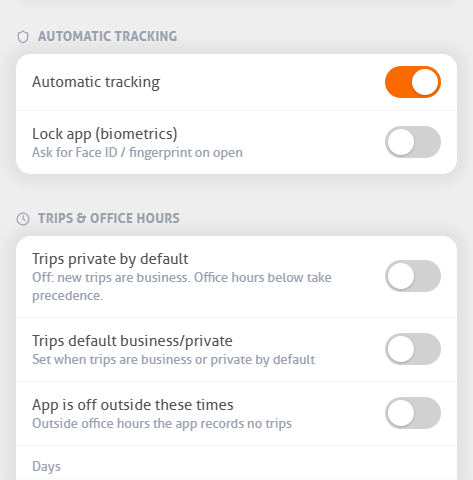
- Automatic tracking. Off means you start and stop trips yourself.
- Trips & office hours. Days and times, whether trips inside them are business by default, and whether the app should be off entirely outside those times.
- Trips private by default. The fallback setting for trips outside your office hours.
- Notifications. When a trip starts and as soon as a trip has been added. The quick buttons for the category live here.
- Show trip score. On or off.
- Driving behavior events. Detects hard acceleration, braking and sharp turns in the trip.
- Distance filter. How often the app records a point. Lower gives a more accurate track and costs more battery.
- Lock app. Asks for Face ID or your fingerprint on opening. Only works if your device has biometrics.
- Battery management. Takes you to where you switch off battery optimization for MoveJack.
12. Your data
Your trips, visits, vehicles and addresses sit in a database on your phone. You do not create an account, so there is nothing to log into and nothing to forget.
There is a consequence to that: we cannot restore anything for you. If you lose your phone, we cannot bring your records back, because we keep no central copy of them on our servers. So take an export to Excel or PDF regularly. That file is your own safety net — and because you have to keep a mileage log, it is also the file you archive.
Under Your data you can wipe everything in one go: all your trips, visits and addresses. That happens after a confirmation and is final.
For the question of which individual pieces of data the app needs along the way — an address for a coordinate, a speed limit, a map tile — and what of that leaves your device, the explanation is on privacy at MoveJack.
13. When a trip was not recorded
This is the question that comes up most often, and in nearly every case the answer is in your phone’s power management. Work through these, in this order:
- Is location set to ‘all the time’? On ‘while using’ the recording stops as soon as you put your phone away. Check that precise location is on as well.
- Is battery optimization off for MoveJack? Android throttles background processes otherwise. Samsung, Xiaomi, OPPO and Huawei are particularly strict about this.
- Is ‘manage app if unused’ off? If not, Android withdraws your location permission after a few months and you only notice when trips are missing.
- Is physical activity allowed? Without that permission the app does not notice you setting off.
- Are office hours on with ‘app off outside these times’? Then the app deliberately records nothing outside those times.
- Do you work with tags? If ‘delete trips without a tag’ is on and you did not have the tag with you, the trip was not saved. Check whether Bluetooth was on as well.
A missing trip you can always add yourself with Add trip — trips in the past are allowed. If it keeps going wrong, get in touch through Menu › Contact customer service and say which device you have; that saves a round trip.
Common questions
Do I have to open the app before I drive?
No. As long as the permissions are set correctly, the app records in the background, even if you have swiped it away and even after your phone restarts.
Does it use a lot of battery?
That depends mainly on the distance filter. A lower value records a point more often, gives a more accurate track and costs more battery. When the app is stationary the GPS drops into a low-power mode.
Does the app work without internet?
Recording trips works without a connection; that happens with GPS on your device. Turning a coordinate into an address, speed limits and the map do need a connection. Those fill in later when you are back online.
Can my employer look in?
Not from the app. The app does not sync your trips to us, and there is no account through which somebody else could request them. If you want to submit trips, you make a report yourself and send it: you choose the period and the category, and only what you send reaches the other side.
I have a new phone. Do my trips come along?
Whether your app data goes along in your phone’s system backup depends on your platform and on the version you have. Do not assume it: take an export to Excel or PDF first, then your records are at least outside your phone. Restoring into the app is not possible.
Can I add trips from before I installed the app?
Yes, with Add trip. You choose the date, the time, a start and an end address and the distance. Only trips in the past are allowed.
How do I cancel my subscription?
In the App Store or Google Play, because that is where the payment runs. Menu › Manage subscription takes you straight there. Deleting the app does not cancel the subscription.
Your question not here? Under Menu › Frequently asked questions there is a list in the app itself, and Contact customer service gets you to a person.